

Flow Variables
Store and reuse values in Conditional Flows — static and dynamic variables, JMESPath aggregations, the COUNT and DATE functions, and how variables reach component jobs.
Variables in Conditional Flows let you store and reuse values — like dates, task results, or custom inputs — throughout your flow. You can use them to make decisions, control flow logic, or pass dynamic values between tasks. The sections below walk through how to set up and use variables from the UI; each step also shows the JSON shape generated behind the scenes for template authors and API users.
Adding a Variable
Section titled “Adding a Variable”- In a phase, click the + icon and choose Variable. The Set Variable panel opens on the right.
- Enter a Variable Name — this is the identifier other tasks will use to reference the value.
- Choose a Variable Type — either Static Value or Dynamic Value.
Static Value
Section titled “Static Value”A Static Value is a fixed text or number you enter directly. Useful for thresholds, IDs, or labels that don’t change between runs.
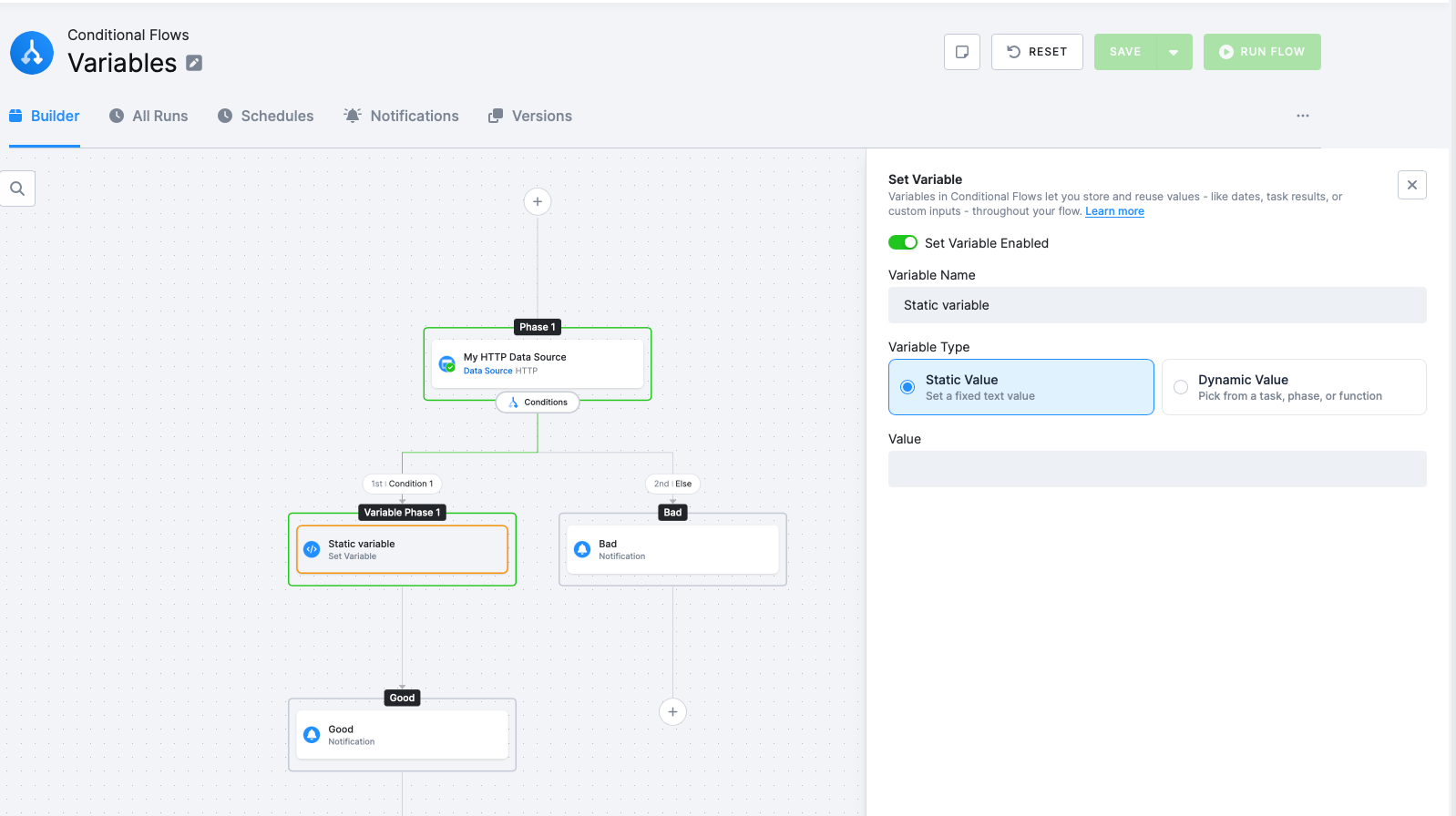
JSON equivalent (useful when authoring a flow as a template or via the API):
{ "type": "variable", "name": "max_duration", "value": 3600}Dynamic Value
Section titled “Dynamic Value”A Dynamic Value is computed at run time from a task result, an earlier phase, or a built-in function (see Date & Time function below). When you pick this type, the value picker lets you browse the outputs of tasks that ran earlier in the flow. You can pick any field from the job’s result tree — for example result.output.tables, result.artifacts, result.images, result.configVersion, result.errorMessage, and many more.
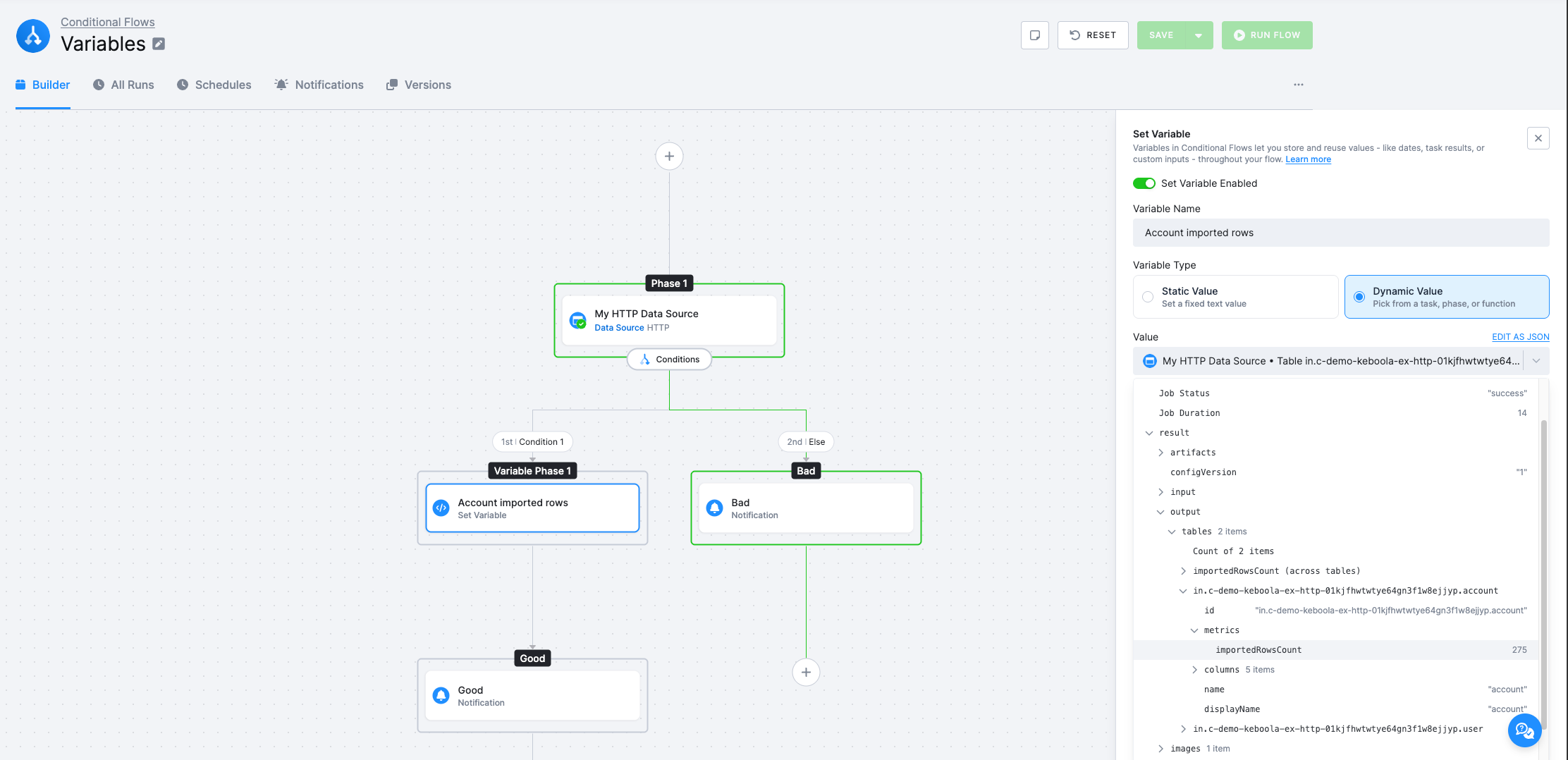
If a task produces multiple output tables, the picker also offers aggregations across all of them: Sum, Minimum, Maximum, and Average of a numeric field. For example, Sum of importedRowsCount returns the total number of rows imported by an HTTP data source across every output table.
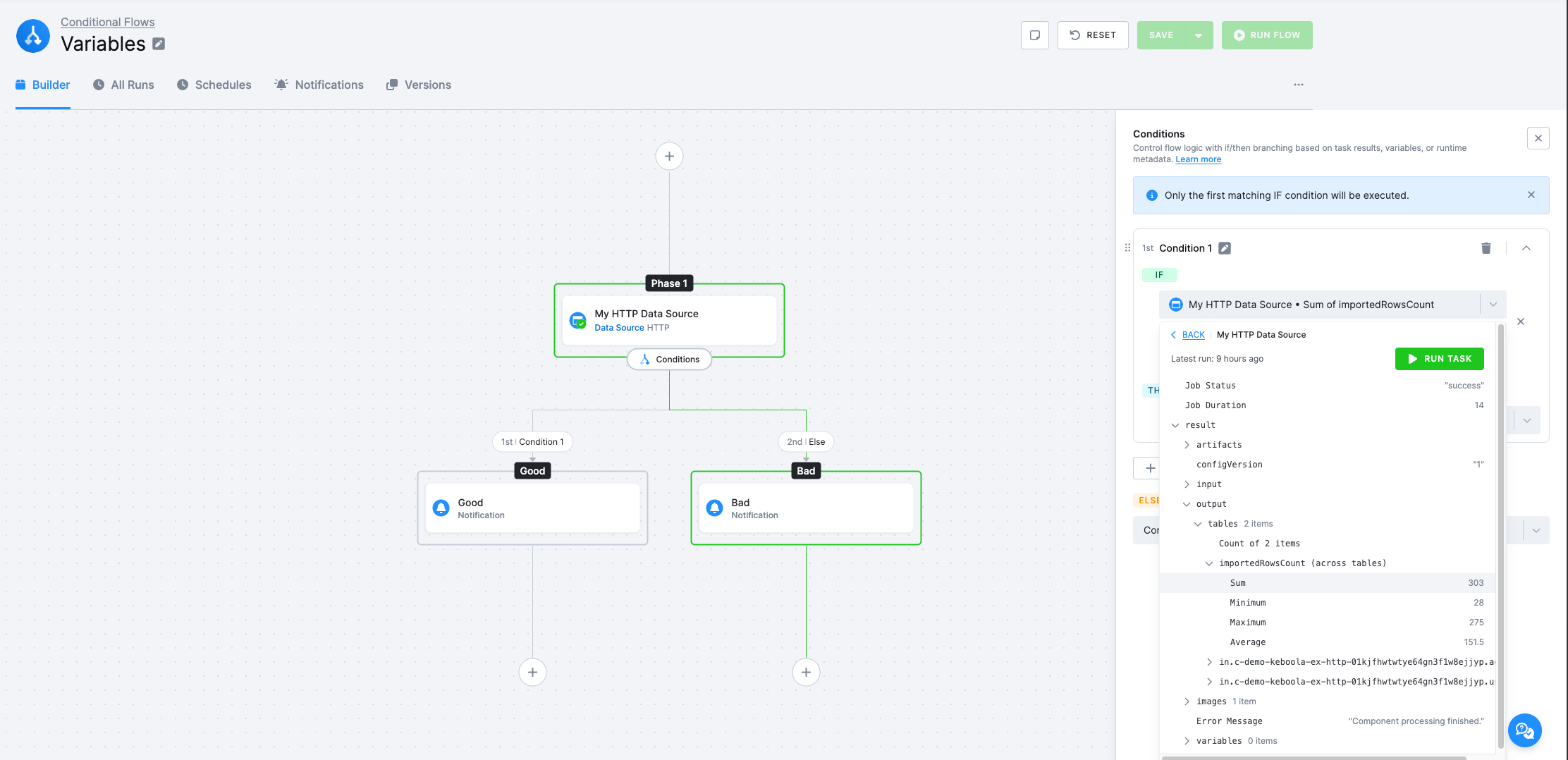
JSON equivalent — behind the scenes the aggregation is stored as a source definition. For example, Sum of importedRowsCount can be expressed as a JMESPath aggregation in the task value. Note that the picker tree displays paths rooted at result.* (for example result.output.tables), while the generated value expression is rooted at job.result.*:
{ "type": "variable", "name": "total_imported_rows", "source": { "type": "task", "task": "extract-data", "value": "sum(job.result.output.tables[].importedRowsCount)" }}COUNT and DATE are the only functions exposed via the function block (see Date & Time function below); they take their inputs as operands. COUNT counts the items a JMESPath expression returns — for example, the number of output tables a task produced:
{ "type": "variable", "name": "table_count", "source": { "type": "function", "function": "COUNT", "operands": [ { "type": "task", "task": "extract-data", "value": "job.result.output.tables" } ] }}The value field accepts JMESPath expressions, so you can filter and extract specific items from the task result instead of just walking the tree. For example, picking the name of a particular output table by its ID:
{ "type": "task", "task": "97288", "value": "job.result.output.tables[?id=='out.c-test.example'][].name | [0]"}Date & Time function
Section titled “Date & Time function”Returns the date/time formatted according to the specified format string, available formats: https://www.php.net/manual/en/datetime.format.php.
This example returns the full textual representation of the current month, such as “July” or “August”.
{ "type": "function", "function": "DATE", "operands": [ { "type": "const", "value": "F" } ]}Example of creating a variable with the current timestamp:
{ "id": "set-timestamp", "name": "Set Timestamp Variable", "phase": "init", "task": { "type": "variable", "name": "current_timestamp", "source": { "type": "function", "function": "DATE", "operands": [ { "type": "const", "value": "U" } ] } }}Using Variables in Conditions
Section titled “Using Variables in Conditions”Once a variable has been set in an earlier phase, any later Condition can compare its value against a constant, against another variable, or against a task result.
- In the IF row, click the value picker and choose a variable, a task result, or a phase result from an earlier phase.
- Choose an operator (Greater than, Equals, Contains, …).
- Provide a comparison value — a constant, or another value picked from the tree.
- Set the THEN and ELSE actions: Continue To an existing phase, or end the flow.
Only the first matching IF condition is executed; subsequent IFs in the same Conditions block are skipped.
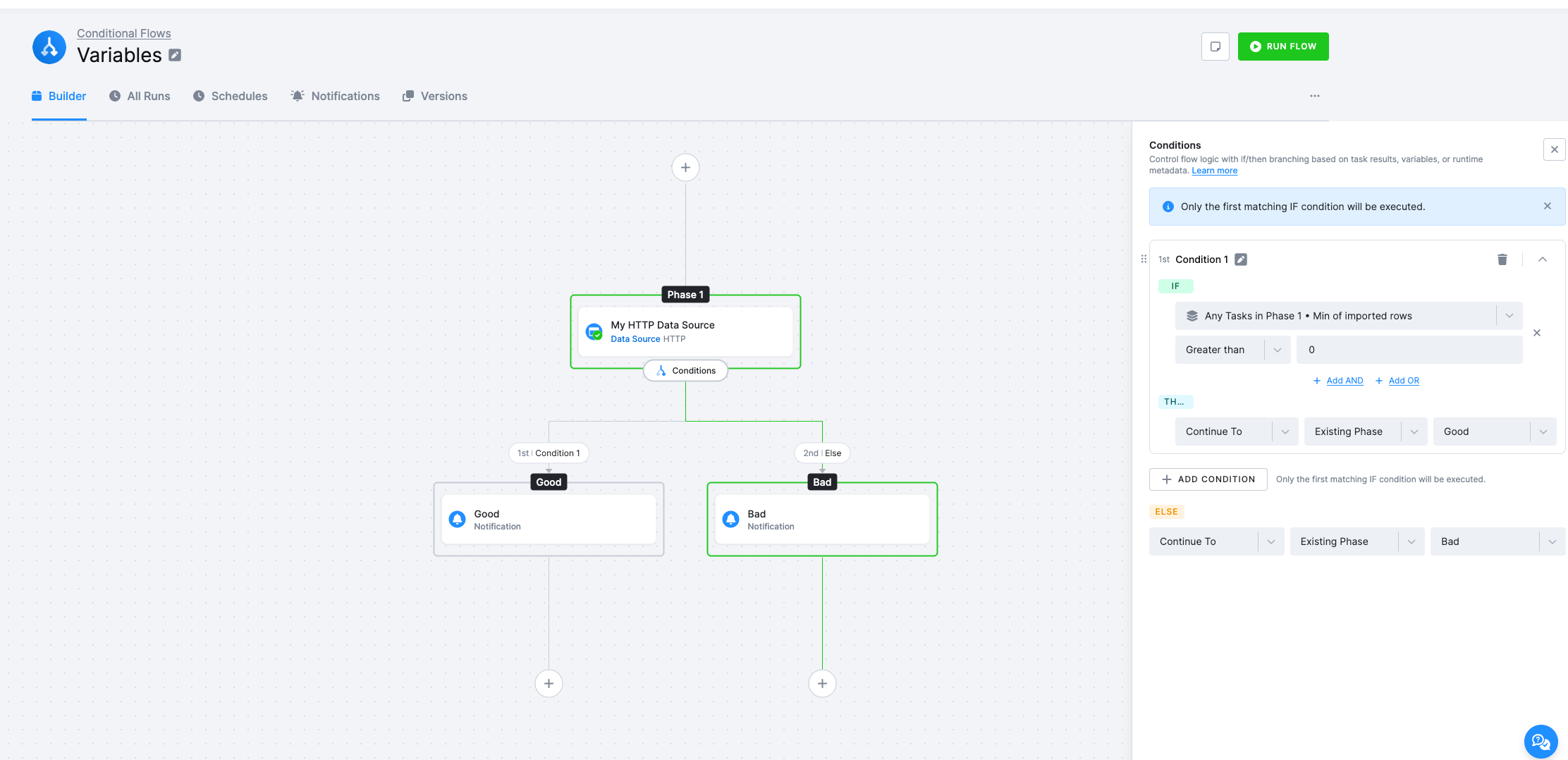
See also the Conditions section for the full list of operators and condition types.
How Variables Reach Component Jobs
Section titled “How Variables Reach Component Jobs”When a phase runs a component (a job task), the variables you set earlier in the flow are merged into the component’s own variables. A flow variable replaces a component variable only if both have the same name — flow variables whose names the component does not declare are silently ignored. This means: to let a flow drive a value inside a component, declare a variable with the matching name in the component’s configuration; the flow will fill it in when the job runs.
For finer control on a specific job task, an advanced variableOverrides field on the task can restrict which flow variables are merged in.